Two shortcuts
There is a moment, many times a day, when the thing you want to say is already in your head and the keyboard is what stands in the way. There is another moment when the sentence is on the screen and it is not quite right. Most people solve the first with a dictation service and the second by copying text into a chat window, waiting, and copying it back.
We wanted both to be one keystroke, in whatever app you are already using, and we wanted neither to leave the computer.
⌃⌥Space (Control, Option, Space) starts dictation. ⌃⌥K (Control, Option, K) asks Kalon about the text you have selected, or about nothing in particular.
Why we built it
Wispr Flow showed how good voice typing can feel. You hold a key, speak, and polished text appears wherever the cursor is. We admire it, and dictation that floats over every app is the idea we set out to bring home.
The difference is where the work happens. Wispr says plainly that transcription always occurs in the cloud, and that it offers no on-premises, private tenant or offline deployment today. It also explains why: the cloud gives it speed, accuracy and the newest model, and spares the battery. Wispr provides controls over what is kept, and it states that audio is deleted once it is transcribed unless cloud storage is on. Those are reasonable engineering choices. They still mean that your voice travels to a server before it becomes text.
For many people that is fine. For some it is not. A nurse dictating a note, a lawyer drafting a letter, a researcher describing unpublished results and a person writing in a diary all have good reasons to want the words to stay where they were spoken. And in the places we build for, the connection itself is the problem. A dictation tool that needs the network is a tool that stops working on the bus, in the village, and during an outage.
So we asked a simple question. If a laptop can hold a speech model of 244 million parameters in 264 MB, and a capable language model beside it, why should a sentence leave the laptop at all?
Dictate anywhere
Press ⌃⌥Space in any app. A small glass pill rises at the bottom of the screen and starts listening. Speak. Press Return to insert the text, or Escape to throw the recording away.
The recording is captured at 16 kHz and transcribed by Whisper, running inside Kalon through whisper.cpp. Two sizes are offered in Kalon's catalogue: a base model of 82 MB and a small model of 264 MB. Once one of them is downloaded, dictation needs no connection.
Four decisions shape how it feels.
The other app never loses focus. The pill is a panel that does not activate. Your cursor stays exactly where it was, in the document, the message or the search field, because as far as that app knows nothing happened. This one property is most of the feature.
The shortcut costs nothing. The key combination is registered with macOS in a way that needs no permission and works while Kalon is in the background. Return and Escape belong to the pill only while it is listening. The rest of the time they belong to your apps, as they should.
The microphone cannot be forgotten. A recording ends by itself after two minutes. If you are in a password field, Kalon refuses to start and says why.
Your clipboard comes back. Text is inserted by placing it on the clipboard, pressing ⌘V for you, and restoring what was there before. It is the one method that works in native, web and Electron apps alike.
Ask anywhere
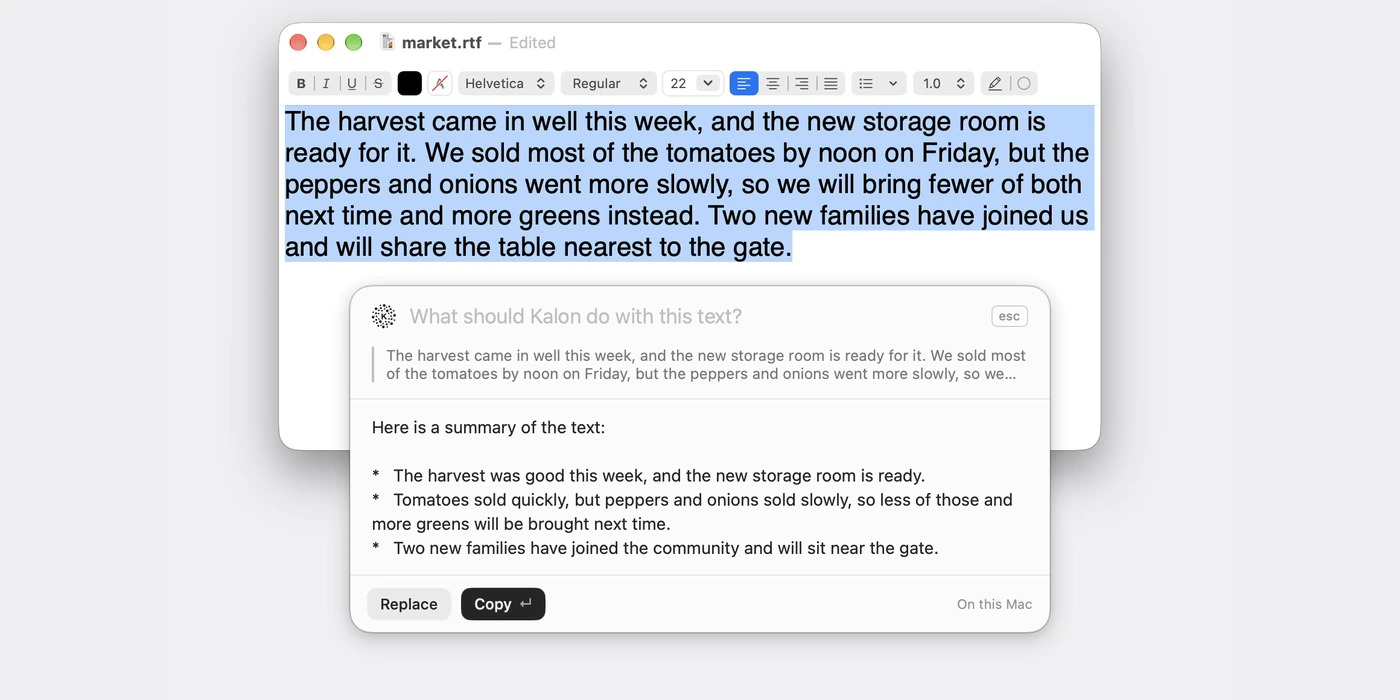
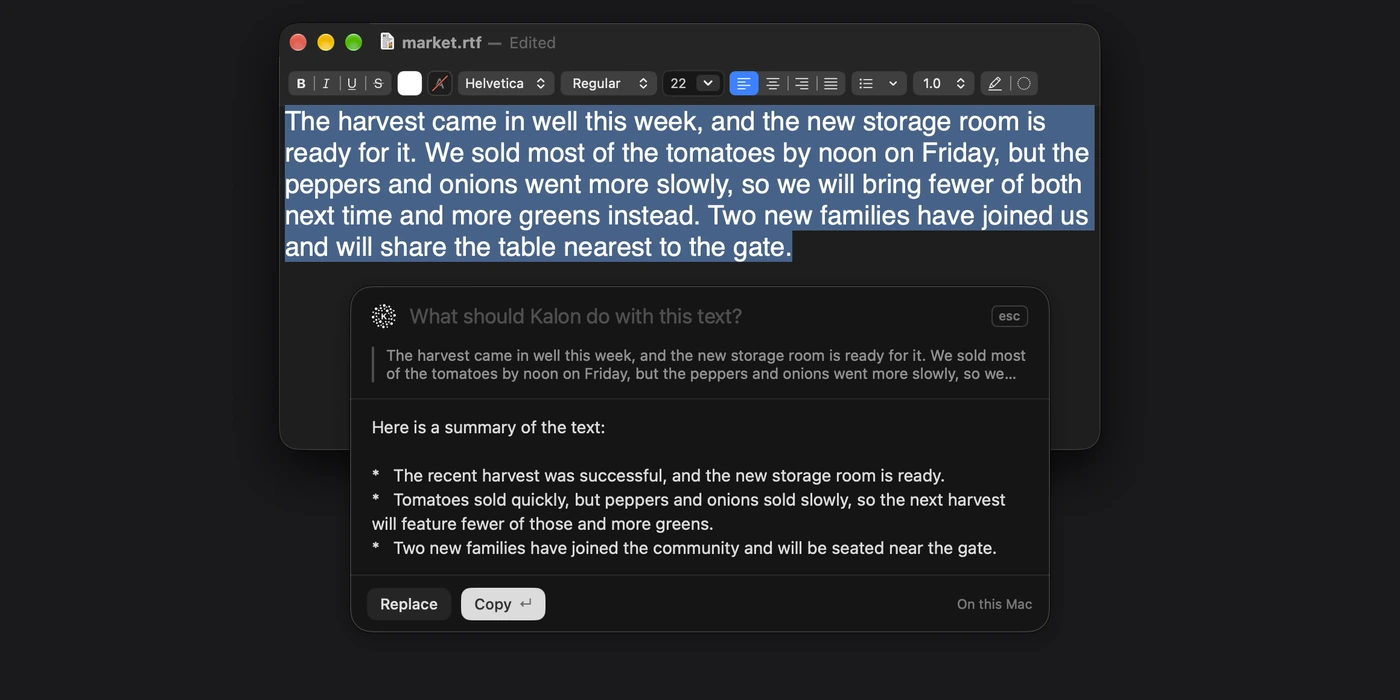
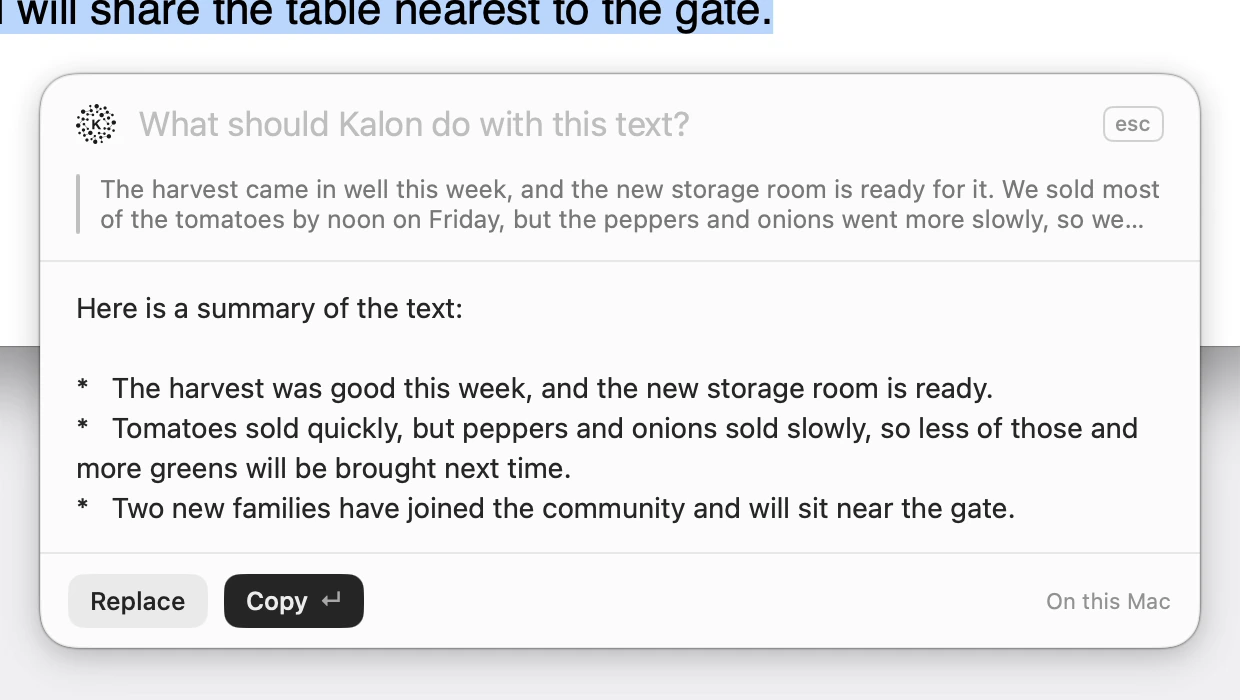
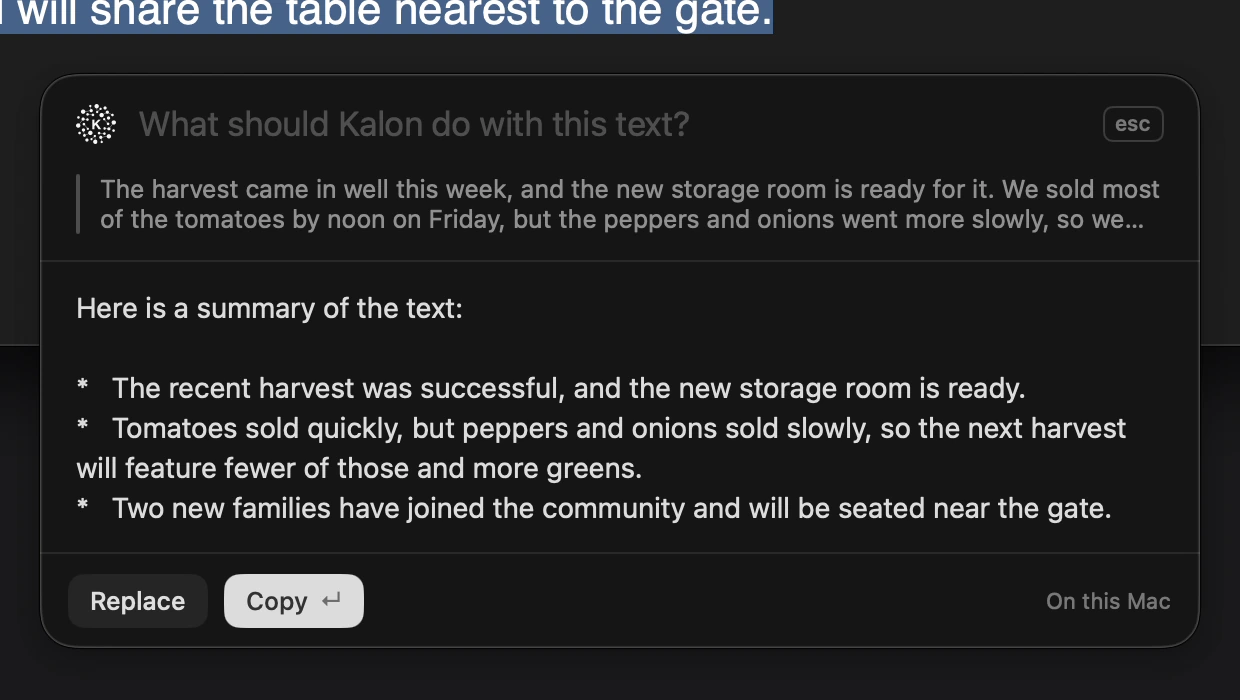
Select some text in any app and press ⌃⌥K. A panel opens over your work with the selection quoted at the top, so that it is clear what Kalon has picked up.
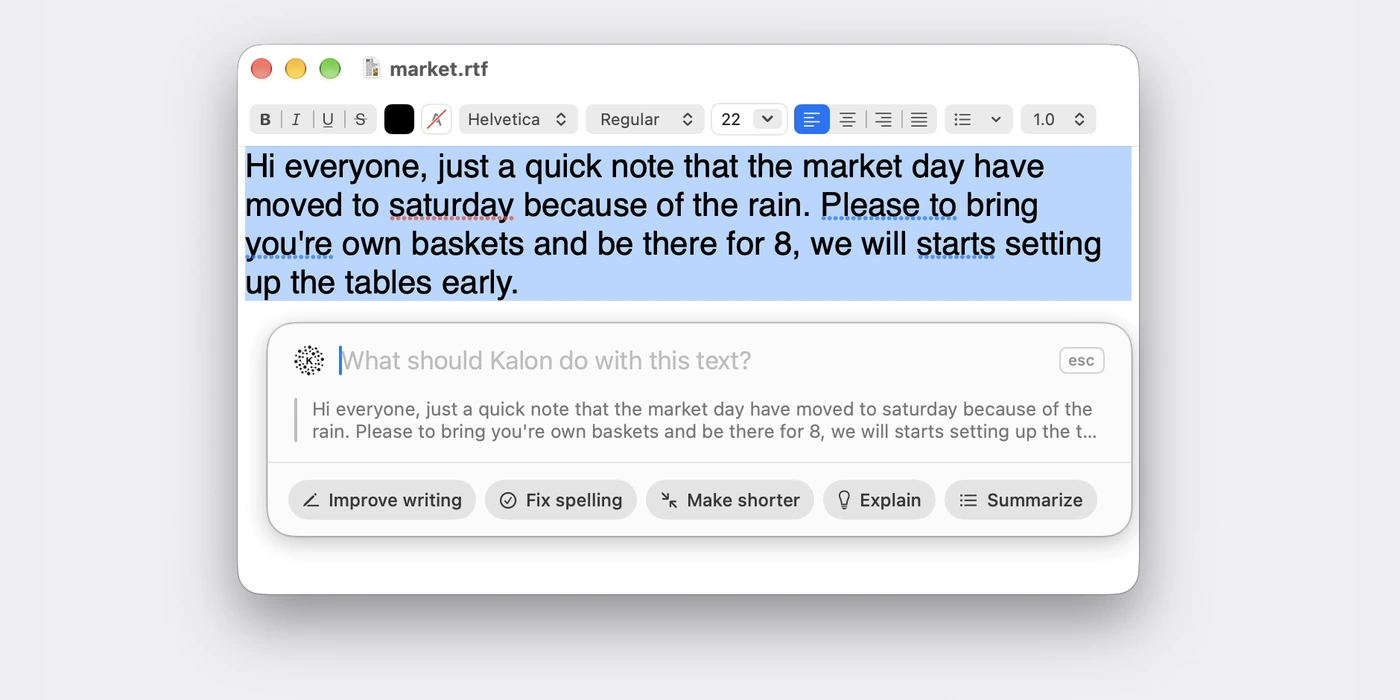
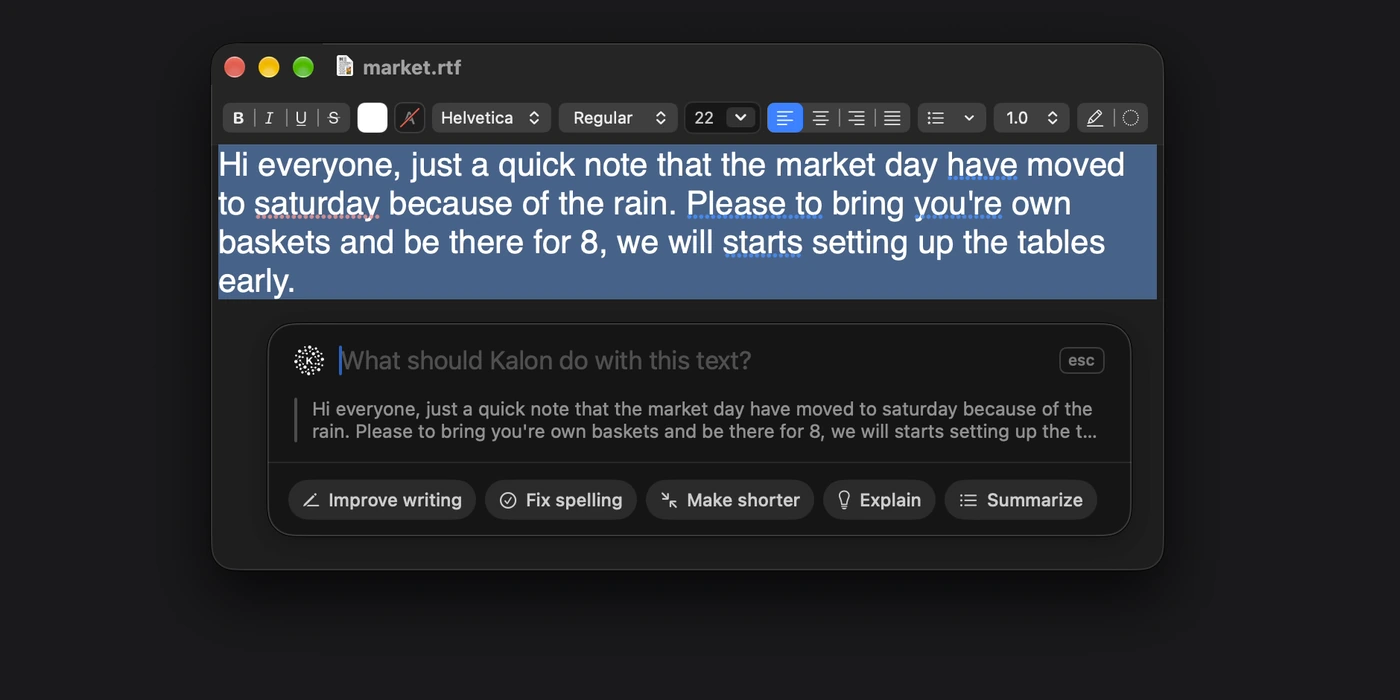
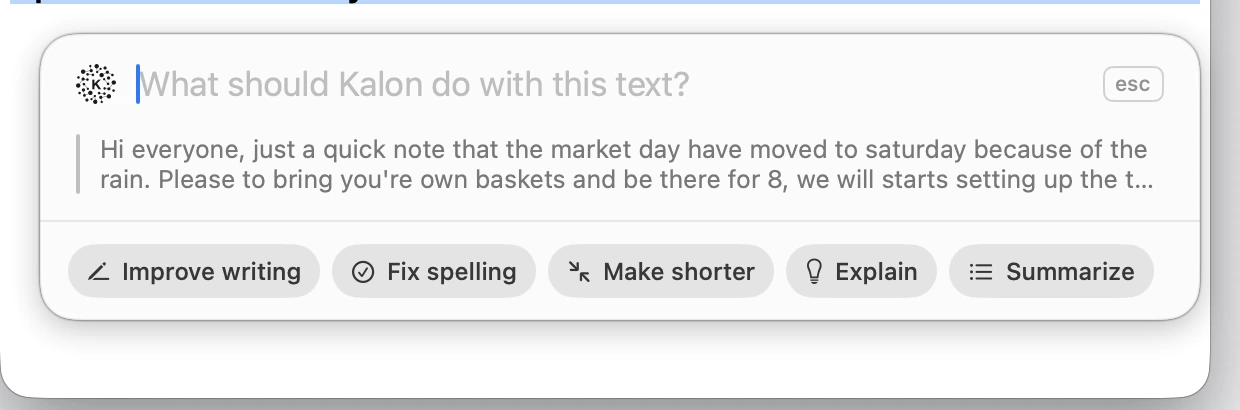
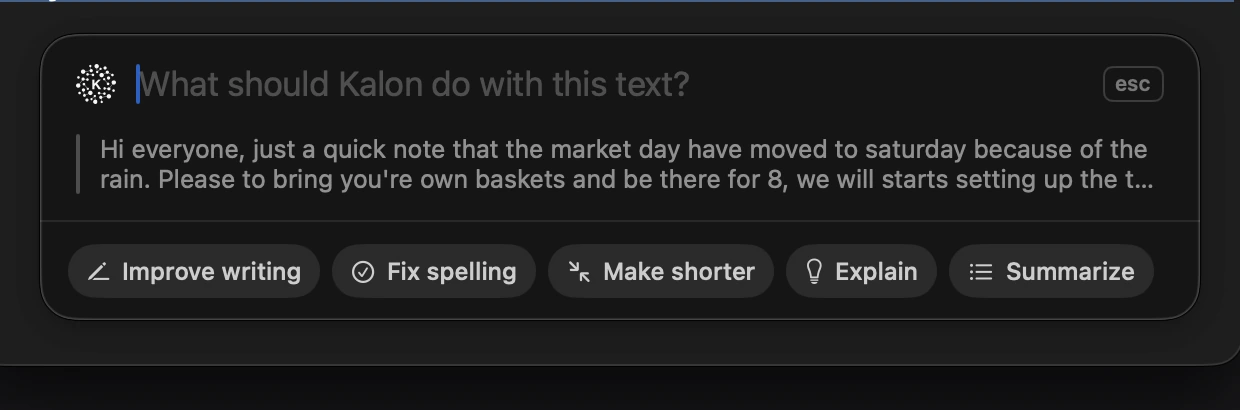
Five actions cover most of what people ask. Improve writing rewrites the text so that it reads clearly and keeps its meaning, language and tone, which is what most of us mean by paraphrasing. Fix spelling corrects spelling, grammar and punctuation and changes nothing else. Make shorter says the same thing in fewer words. Explain puts it simply, and Summarize turns it into a few points.
The answer appears as it is written. Return puts it back in place of your selection, and ⌘C copies it. For an explanation or a summary, Return copies instead, because you rarely want a summary to overwrite the thing it summarizes.
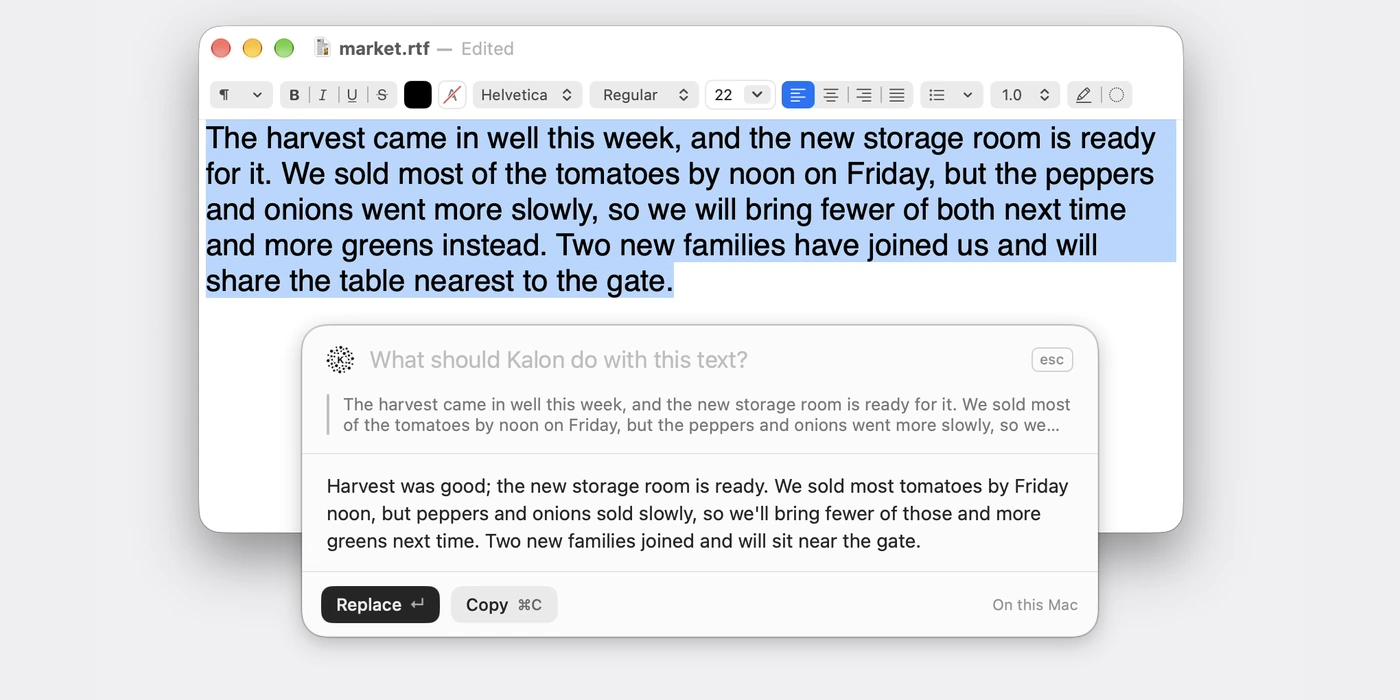
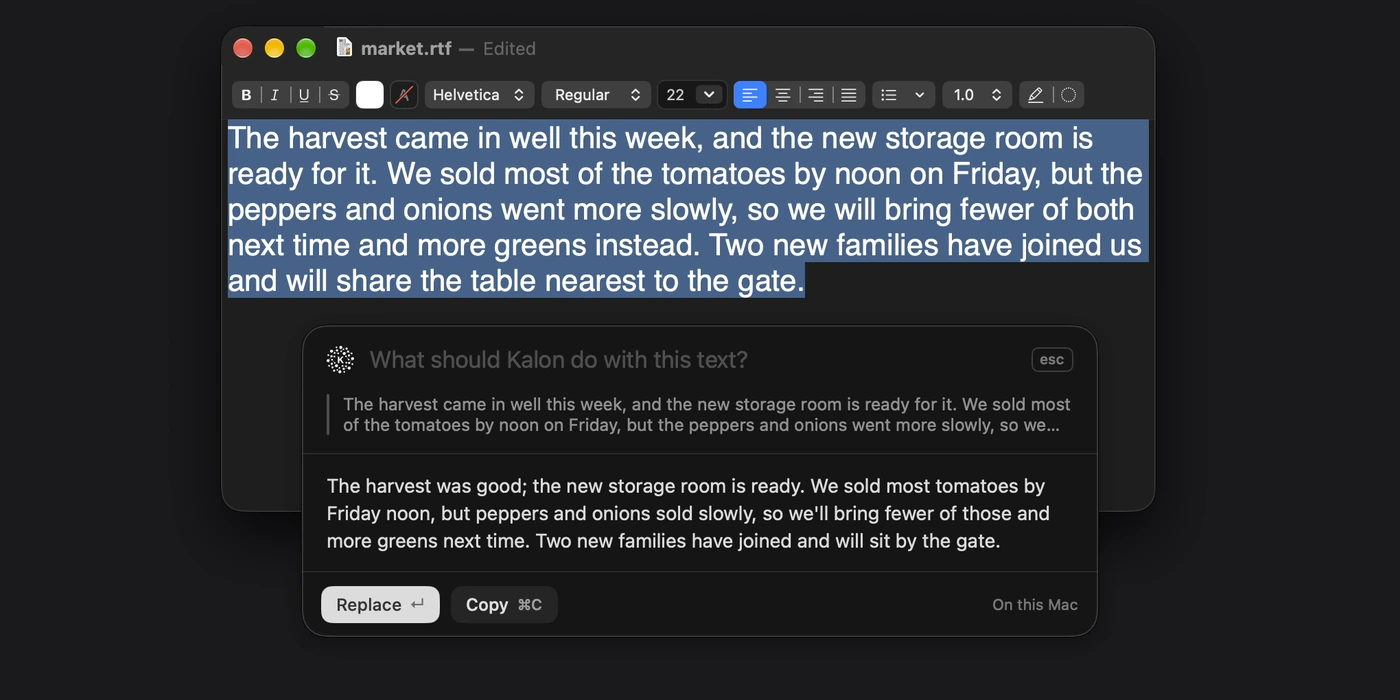
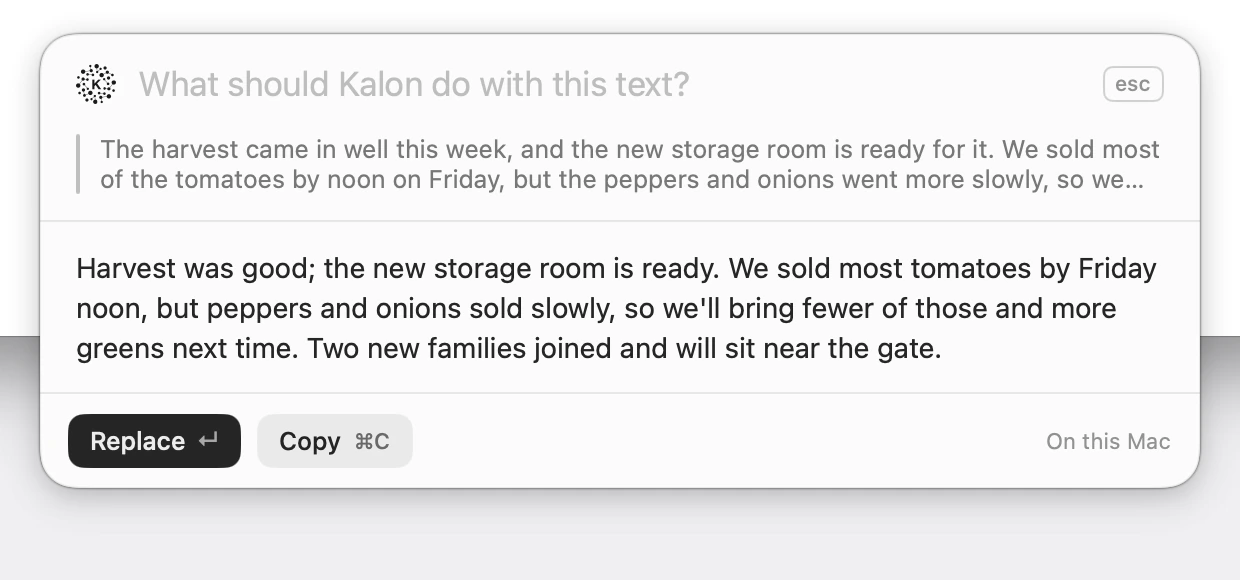
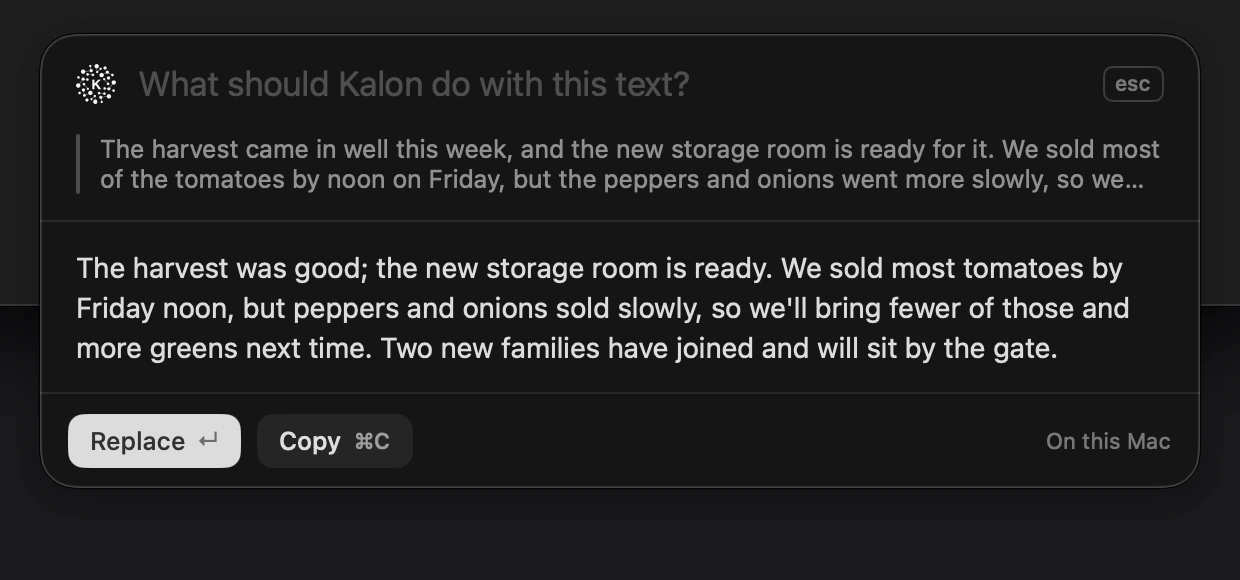
The field at the top takes any instruction you can phrase: make this friendlier, turn it into a list, answer this in French. With nothing selected, the same panel is a place to draft. Ask for a reply declining an invitation, or an opening paragraph for a report, and copy it into your document.
Three decisions matter here too.
It answers at once. Kalon runs these requests in its instant mode, without a long stretch of visible reasoning, and caps the reply at 1,024 tokens. A rewrite should arrive like a spelling correction, not like an essay.
It reads the selection gently. Kalon first asks macOS for the selected text, which touches nothing. Only where an app does not offer that does it copy the selection for you, and then it puts your clipboard back. Text it places there is marked as temporary, following the convention clipboard managers use to skip such entries.
It pastes only where it should. Replace goes back into the app the text came from. If you have switched to another app in the meantime, Kalon leaves the result on the clipboard instead of pasting it into the wrong place.
What stays on the Mac
| Where it runs | What is kept | |
|---|---|---|
| Dictate anywhere | Whisper, on the Mac | The recording is held in memory for transcription. Kalon keeps no history of what you dictate. |
| Ask anywhere, local model | The model loaded in Kalon, on the Mac | Nothing is saved. The panel leaves no chat behind. |
| Ask anywhere, online model | The provider you chose | Only if you have turned online models on and selected one. The panel then says Online. |
The last row deserves a sentence. Ask anywhere uses the model you have selected in Kalon. Online models are off unless you turn them on, and the corner of the panel always tells you which case you are in: On this Mac, or Online. Every figure in this report was made with a local model.
What it needs from you
Dictation needs a Whisper model and permission to use the microphone. Inserting text into other apps, and reading a selection from them, need the Accessibility permission, which macOS asks you to grant once. Without it dictation still works. Kalon leaves the text on the clipboard and tells you to press ⌘V. Ask anywhere still opens, empty, as a place to type a question. Either feature can be switched off in Settings.
Better together
The two shortcuts meet naturally. Dictate a paragraph with ⌃⌥Space, select it, press ⌃⌥K, and improve it. Speaking gets the thought down, and asking gets it right, without opening another window.
How quickly an answer appears depends on your Mac, its memory, the model you choose and the other apps you have open. Once a model is loaded, Kalon keeps it ready, so the requests that follow start sooner.
Why this matters
Writing is where most thinking happens, and for a long time help with writing has come with a condition: show us what you are writing. Two keystrokes on a laptop are enough to show that the condition is optional. You can speak and have it typed. You can select and have it improved. Your words can stay on your own machine while it happens, with the network on or off.
That is what we mean by edge intelligence.
Kalon is free for the Mac. Download it, press ⌃⌥Space, and say something only you need to hear.